Working with Individual Models for a Time Series
- Modeling Tab
- Using the Model Repository
- Comparing Models
- Selecting a Different Champion Model
- Saving Your Changes in Interactive Modeling
- Series Update Status
- How Changes to the Hierarchy Affect Interactive Modeling
Modeling Tab
The Modeling tab in Interactive Modeling is similar to the Modeling tab in the Forecast Viewer, but with some substantial differences. For more information about the Modeling tab in Forecast Viewer, see Modeling Tab for Forecast Viewer.
The Modeling tab includes a model selection list table and a plot for the time seriesan aggregation of transactional data into specified time intervals and sorted according to unique combinations of the default attributes (BY variables) that is selected in the Series pane. By default, the first item in the list is selected in the Series pane. The contents in the model selection list are updated as you select other time series in the list. Select a model in the table by clicking on the row for the model. The row is highlighted and the plot below is updated based on the forecasts from that model. You can use the table to compare the different models before overriding the selected champion model.
- Model Selection List Table
-
Each model in the table is categorized by one of the following types.
- Predecessor
-
These models provide the forecasts from one of the preceding modeling nodes.
- System-generated
-
These models are generated by Interactive Modeling. Generated models are the candidate models that would be generated by the equivalent of an Auto-forecasting node when it is run using the default selections. If you have an Auto-forecasting node preceding the Interactive Modeling node with the default selections, the generated forecasts and selection criteria should be the same.
If you right-click one of these models, you can select it as the new champion or create a copy of it with different settings.
Note: The usage of independent variables and eventsan incident that disrupts the normal flow of any process that generates the time series. Examples of events are holidays, retail promotions, and natural disasters. in system-generated ARIMA models are automatically set to Force to use if their inclusion does not cause the model to fail. - Custom
-
These models are created by users. Models can be created from scratch or can be copies of other models listed in the table. You can use the options in the Toolbar or right-click actions to create custom models. Models that are added to time series from the repository are also classified as custom models.
For more information, see Creating Models.
The table in the Modeling tab lists the predecessor modeling nodes and the system-generated models. If an Ensemble node is a predecessor, it is listed as follows:
- The Ensemble node indicates its champion
predecessor model (for example: "
Best of Seasonal
                     Model
") when a time series at the lowest level of the hierarchy is selected. - If Hierarchical Modeling is turned on and a
higher level in the hierarchy is selected in the Series pane, it
simply indicates "
Aggregated forecasts from Ensemble
                     node
".
- Champion selection statistic
-
When Interactive Modeling is run, the models in the model selection list are assessed to determine the champion. System-generated models are not included in this assessment. By default, only the predecessor nodes are included in the assessment. If custom models have been added to any of the time series, they are included in the assessment only if Custom models has been checked under under Automatic Forecast Selection, in the right pane. If a model is manually selected as the champion, the other models in the list are not considered for champion.
The models in this table are sorted by the out-of-sample statistic of the Automatic Forecast Selection when an out-of-sample regionthe number of time periods before the end of the data that are removed when fitting models. After model selection, forecasts are generated in the out-of-sample region and then compared to the actual data to determine accuracy. is defined in project settings. If an out-of-sample region is not defined in project settings, the models are sorted by in-sample statistics of the Automatic Forecast Selection.
If an out-of-sample region is specified for this project, the out-of-sample statistics are shown for each of the models. The out-of-sample statistics are used to determine the champion predecessor node. The champion modeling node is indicated with this icon:
 .
. MAPE is the default statistic to determine champion model for each predecessor node. You can change this selection criteria using the Model selection criterion setting in Model suggestions.
By default, the champion predecessor model is selected using RMSE. RMSE is the default under the Automatic Forecast Selection settings for Interactive Modeling. To use another statistic for selecting the champion, see Specify criterion.
Note: For hierarchical forecasting, the statistics of fit value shown for the predecessor model differs from the one shown in the Modeling tab of the Forecast Viewer. The measure shown in Interactive Modeling is the reconciled value from the OUTSTAT table. The measure in the Modeling tab for Forecast Viewer is the value before reconciliation from the OUTSELECT table.
The contents of the model selection list table depend on whether you select Inherit model selection list of predecessor modeling node in the options for Interactive Modeling.
- Inherit the predecessor node's model selection list is turned off
-
The predecessor modeling nodes are listed with the name
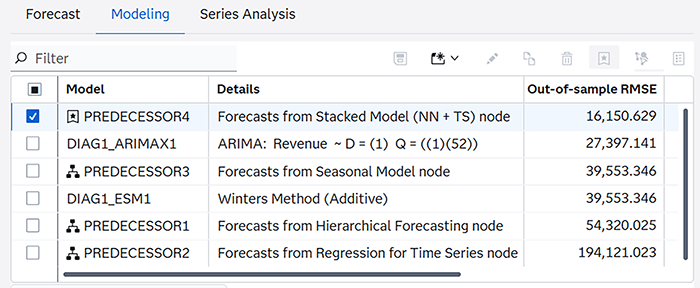
PREDECESSOR, followed by a number if there is more than one preceding modeling node. For the selected time series, the predecessor node that has the best score for the selection criteria is marked as the champion (). In the figure below, the Details column shows the name of the predecessor
modeling node. For example, PREDECESSOR3 is a Seasonal Model node. PREDECESSOR4 (Stacked
Model) is marked as the champion because it has the best RMSE score.-
Model Selection List Table with Predecessor Nodes Listed
-
- Inherit the predecessor node's model selection list is turned on
-
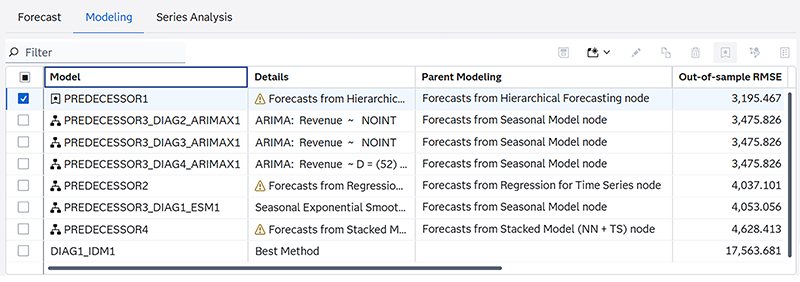
In this table, the model selection list includes the candidate models that are in the predecessor node's model selection list. In the figure below, there are four predecessor nodes. In this example, only PREDECESSOR3 (Seasonal Model) provides the candidate models from its model selection list. When the model selection list from a predecessor node is provided, the Details column does not display the name of the predecessor node. Instead, it displays information about each model provided by PREDECESSOR3. To determine the name of each predecessor, add the Parent Modeling column to the table. For information about adding, rearranging, and removing columns in a table, see Working with Tables in SAS Model Studio in SAS Visual Forecasting: Overview.
PREDECESSOR1 in this table is a Hierarchical Forecasting node, which does not provide a model selection list. For Hierarchical Forecasting, you can generate the Forecast Model Selection Graph table, but Interactive Modeling does not inherit it. For a list of modeling nodes that can provide their model selection list, see Inherit model selection list of predecessor modeling node.
-
Model Selection List with Predecessor Models Listed
-
_DEFAULT_STATUS_ for the model name. In this case,
the Details column includes a status code that can explain the results for the selected
time
series. For more information, see Table 24: Description of Forecasting Status in _STATUS_ Column.- Right-click actions
-
The following right-click actions are available for all of the models in this table except for the predecessor model.
- Compare selected models
-
After you select two or more models in the table, this option opens a window that displays all of the selection statistics for each selected model. The
 icon in the toolbar performs the same action.
 - Set as champion
-
This selects the model as champion. One of the predecessor models is initially set as champion. After you select a champion, you need to save the changes as described in Selecting a Different Champion Model.
- Unselect champion
-
This changes the champion designation to the model that was originally designated as champion. After you deselect the champion model, you must save this change as described in Saving Your Changes in Interactive Modeling.
- View status details
-
If a model generates a warning or error, use this option to get more information. You might need to download the logs for complete analysis.
- Edit selected model
-
Opens the window to edit the model definition. This option is enabled only for custom models. This includes user generated ESM, ARIMA, and Subset (Factored) ARIMA models. You cannot edit system-generated or predecessor models or any model that is selected as the champion. If a custom model is included in a combination model, it cannot be edited.
The
 icon in the toolbar performs the same action.
 - Create a copy of the selected model
-
Opens a window where you can change the settings and save a new copy of the model. The
 icon in the toolbar performs the same action. This option is not enabled
for predecessor models.Note: Some models can provide a valid statistic of fita statistical value that is used to evaluate how well a forecasting model fits the historical series by comparing the actual data to the predicted values. in the In-sample MAPE column, even if the Details column shows a status code. Creating a copy of these models can result in a failed model. Try to make changes to the model specification to resolve the status error before you attempt to copy the model.
icon in the toolbar performs the same action. This option is not enabled
for predecessor models.Note: Some models can provide a valid statistic of fita statistical value that is used to evaluate how well a forecasting model fits the historical series by comparing the actual data to the predicted values. in the In-sample MAPE column, even if the Details column shows a status code. Creating a copy of these models can result in a failed model. Try to make changes to the model specification to resolve the status error before you attempt to copy the model. - Delete selected model
-
Select one or more custom models for deletion. The
 icon in the toolbar performs the same action. You can delete only custom
models. The following criteria must be true to delete a custom model.
icon in the toolbar performs the same action. You can delete only custom
models. The following criteria must be true to delete a custom model.- The model cannot be marked as champion.
- The model cannot be included in a combination model.
If multiple custom models are selected for deletion, only those models that meet these criteria are deleted.
- Download
-
Select from these options:
- Download model specification code — Downloads the CASL code for the selected model and time series. See Downloading and Running Code for a Model for more information.
- Download model formatted data — Downloads the formatted data for the time series. This data differs from the seriesData.csv that is included in the Download all option. The data is formatted for your specific locale and there are two rows at the top that identify the model and the unique BY variable identification for the time series.
- Download all — Downloads the CASL code and time series data for this model. See Downloading and Running Code for a Model for more information.
- Save to model repository
-
Saves the selected model to the model repository. See Saving Models to the Model Repository for more information.
- Toolbar
-
The toolbar above the model selection list includes these icons. Some icons can also be selected using right-click actions. Those icons are explained in Right-click actions. The following icons do not have an associated right-click action.

-
Use this to create your own model. For more information, see Creating Models.

-
Opens the Model Details window that displays the properties of the selected model. This action is disabled for the predecessor node.
- Plot for the Selected Time Series
-
A plot for the selected time series is displayed below the model selection list table. When you open the Modeling tab, it initially shows the Historical and forecast region plot for the selected model. These plots are based on the forecasts that correspond to the models generated by the Interactive Modeling node.
The toolbar over the plot includes these icons.
 — Downloads a CSV file with the data for the selected plot or table. You
have a choice to download all tables and plots or only those that you select. You
can
choose to download the raw data or data formatted for your specific locale.
Note: If you choose to download all tables and plots, in some cases they are not all downloaded. If you are missing any downloads, you can select the individual plot or table to download again.
— Downloads a CSV file with the data for the selected plot or table. You
have a choice to download all tables and plots or only those that you select. You
can
choose to download the raw data or data formatted for your specific locale.
Note: If you choose to download all tables and plots, in some cases they are not all downloaded. If you are missing any downloads, you can select the individual plot or table to download again. — Maximizes the plot or table to a separate window that can be
resized
— Maximizes the plot or table to a separate window that can be
resized — Displays all of the available plots and tables in one window. When you
click this icon, all of the graphs and tables are opened in the tile view. From the
tabs at
the top of the tile view, you can select one of these plot and table groupings.
— Displays all of the available plots and tables in one window. When you
click this icon, all of the graphs and tables are opened in the tile view. From the
tabs at
the top of the tile view, you can select one of these plot and table groupings.
Click Manage View Diagnostics to add or remove any plot or table from the tile view.
Use the View diagnostic plot/table menu to select among these other plots and tables.
- Forecast
-
- Historical and forecast region — Shows the actual and fit or predicted values for the selected model and time series over the historical and forecasta numerical prediction of a future value for a specified time period for each unique combination of BY variable values horizonthe number of intervals into the future, beyond a base date, for which analyses and predictions are made. time periods.
- Forecast region only — Shows the predicted values for the selected model and time series over the forecast horizon time periods. If an out-of-sample region is specified for the project, it is included in the plot of the forecast region.
- Historical region only — Shows the actual and fit or predicted values for the selected model and time series over the historical time periods. If an out-of-sample region is specified for the project, it is not included in the plot of the historical region.
- Seasonal cycles — Displays any seasonal patterns for the selected time series at regular intervals in the plot.
- Model components — Shows the predicted values for a component of the selected model. For a description of each component, see Model Components.
- Model fit
-
- Parameter estimates —
Shows the values generated in the parameter estimation step. For a complete description
of
this table, see Parameter Estimates (OUTEST).
Note: The parameter estimates table is not available for the predecessor node.
- Statistics of fit — Shows all of the calculated statistics of fit for the selected model and
time series. The row with
Region=FITshows the statistics for the historical region. If an out-of-sample region is specified for the project, then the row withRegion=FORECASTincludes the statistics for the out-of-sample region. - Unbiasedness test — The
plot produced by this analysis shows the predicted values against the actual values
and
includes the estimates, standard errors, and significance-level indicators of the
t test
(asterisks next to the standard error) for intercept and slope parameters of the fitted
regression line. An unbiased prediction would typically result in an insignificant
intercept estimate (no asterisks) and a significant slope estimate (one or more asterisks).
The slope estimates are indicated as follows:
***: p-value <= 0.01**: 0.01 < p-value <= 0.05*: 0.05 < p-value <= 0.1- no asterisks:
0.1 < p-value
The table produced by this analysis is an ANOVA table of a joint test of intercept=0, slope=1, from regressing the actual values on the predicted values. A large p-value for the F test indicates that predictions are unbiased.
- Parameter estimates —
Shows the values generated in the parameter estimation step. For a complete description
of
this table, see Parameter Estimates (OUTEST).
- Basic error analysis
-
- Prediction errors — Shows a plot over the historical region of the difference between the actual values and forecast values predicted by the model. Each error is calculated as the actual value minus the forecast value.
- Prediction error histogram — Shows the prediction errors in histogram format. The vertical bars represent the value-binned errors by percentage. The bell-shaped curve shows the normal distribution with mean and variance estimated from the prediction errors. The dotted line shows the kernel density estimate, which is a nonparametric estimate of the density function.
- Prediction error spectral density — Shows the periodogram and the estimate of the spectral density of the prediction errors.
- Error autocorrelation analysis
-
- Autocorrelation function — Displays a plot of autocorrelation estimates. The number of lags shown can vary, depending on the seasonalitya regular change in time series data values that occurs at the same point in each time cycle. of the time series and the number of missing and nonmissing observations in the series.
- Standardized autocorrelation function — Displays a plot of autocorrelation estimates on the normalized error series. The number of lags shown can vary, depending on the seasonality of the time series and the number of missing and nonmissing observations in the series.
- Partial autocorrelation function — Displays a plot of partial autocorrelation estimates. The number of lags shown can vary, depending on the seasonality of the time series and the number of missing and nonmissing observations in the series.
- Standardized partial autocorrelation function — Displays a plot of partial autocorrelation estimates on the normalized error series. The number of lags shown can vary, depending on the seasonality of the time series and the number of missing and nonmissing observations in the series.
- Inverse autocorrelation function — Displays a plot of inverse autocorrelation estimates. The number of lags shown can vary, depending on the seasonality of the time series and the number of missing and nonmissing observations in the series.
- Standardized inverse autocorrelation function — Displays a plot of inverse autocorrelation estimates on the normalized error series. The number of lags shown can vary, depending on the seasonality of the time series and the number of missing and nonmissing observations in the series.
- White noise probability
test — Shows the significance probabilities of the Ljung-Box chi-square
statistic at various lag values. Probability values that are greater than the 1%
probability threshold suggest a lack of autocorrelation in the preceding lags. Probability
values that are greater than the 5% probability threshold suggest a lack of strong
autocorrelation in the preceding lags.
Lack of strong autocorrelation at most lags indicates that the residuals are white noise and model is a good fit. Probability values are valid and hence shown only for lag values that are greater than the number of parameters in the fitted model.
- White noise probability test (log
scale) — Shows the significance probabilities of the Ljung-Box chi-square
statistic at various lag values on a log scale. Probability values that are greater
than
the 1% probability threshold suggest a lack of autocorrelation in the preceding lags.
Probability values that are greater than the 5% probability threshold suggest a lack
of
strong autocorrelation in the preceding lags.
Lack of strong autocorrelation at most lags indicates that the residuals are white noise and model is a good fit. Probability values are valid and hence shown only for lag values that are greater than the number of parameters in the fitted model.
See Also
-
Generating Output from SAS Model Studio in SAS Visual Forecasting: Overview
Using the Model Repository
The model repository stores models that have been created by users of SAS Visual Forecasting. The repository enables you to reuse these models for any time series in your project. The scope of the model repository is project wide. You cannot reuse models from one project in another project.
The model repository is populated with predefined models at project creation and when a project is imported. Custom models that you create in Interactive Modeling can be saved to the model repository, along with models created by other users for the same project. You can also save system-generated models to the model repository. You cannot save predecessor models or custom combination models to the model repository.
For a complete list of predefined models, see Predefined Models in the Model Repository.
Saving Models to the Model Repository
You can save system-generated and custom models to the repository. When you save any model to the repository, it is saved as a copy of the original model and it is added as a Custom model type. Any changes you make to the original model are not reflected in the model that is saved to the repository. System-generated models are renamed when they are saved to the repository.
- If a model with the same name already exists in the repository, the model is renamed and saved to the repository. However, if renaming the model causes the model name to exceed 32 characters, that model cannot be saved to the repository.
- You cannot add predecessor models, UCM models, IDM models, or combination models to the repository.
Follow these steps for adding models to the model repository.
- Select a single time series in the Series pane in Interactive Modeling.
- Select one or more custom or system-generated models in the model selection list table in Interactive Modeling. You cannot add more than 30 models to the repository in one transaction.
- Click the
 icon in the toolbar above the table. You can also right-click
the model or selection of models and click Save to model
repository.
icon in the toolbar above the table. You can also right-click
the model or selection of models and click Save to model
repository.
If you are adding multiple models, the Add Model to Repository window is displayed. The window has two tabs. One tab shows any errors that might have occurred. The other tab shows how many models were successfully saved to the repository.
If you are adding a single model, a message is displayed indicating the results of this transaction.
- You have the option of clicking the Download link to download the message summary before closing the window.
Adding Models from the Model Repository to a Time Series
When you add a custom model or predefined model from the repository, the model added to the model selection list for the time series is a copy. It is added as a Custom model type. Any changes you make to a model that you add to the time series are not reflected in the model in the repository.
Follow these steps to add models from the repository to a time series in Interactive Modeling.
- Right-click a time series in the Series pane of Interactive Modeling and select Add models from repository. The Add Models from Repository window is displayed.
- Select one or more models from the list. You cannot add more than 30 models to a series in one transaction.
- Click Add to
series.
The Add Models from Repository window is displayed. It has two tabs.
- The Errors tab displays the errors that occurred when trying to add models to the time series.
- The Successes tab lists all of the models that were successfully added to the time series.
Note: If a model being added has the same name as an existing model in the series, it is renamed to resolve the conflict. However, if renaming the model causes the model name to exceed 32 characters, that model cannot be added to the series. - As an option, you also click Download to download the messages from this transaction in CSV format.
- Click Close to dismiss the Add Models from Repository window.
To remove a model from the model selection list for a time series, right-click the model and select Delete selected model. The model still remains in the repository for other uses.
Exporting Models from the Model Repository
Exporting models is a good way to share these models in other projects. Follow these steps to select models from the model repository and export them for use in other projects.
- Navigate to the Data tab and select Models in the left pane.
- Select the models that you want to export in the middle pane.
- When you have finished making your
selections, click
 in the banner above the models and select
Export.
in the banner above the models and select
Export.
The Export window is shown.
- Under cas-shared-default, select a caslib to export the table. You have the option to change the table name.
- Click OK. If the table name already exists, you are prompted to provide a different name.
The models are saved as an OUTFMSG table. For more information about this table, see OUTFMSG Object.
Importing Models to the Model Repository
Models are exported from the repository as an OUTFMSG table. The models can be imported to other projects from the caslib where they are saved.
- If a model with the same name but
a different specification exists in the repository, the model is renamed and
imported to the repository.
If a model with the same name and same specification already exists in the repository, that model is not imported.
- Any BY group information included in the import table is ignored.
- Any IDM, UCM, or combination models in the table are not imported. The models are imported without any dependencies on the time series for which they were assigned.
- Importing a large volume of models can take a lot of time.
Follow these steps to import models to the model repository in a project.
- Navigate to the Data tab and select Models in the left pane.
- Click in the banner over the middle pane and select
Import.
The Choose Data window is shown.
- Locate the OUTFMSG table that was exported from another project and select it to be imported.
- Click
Add.
A message shows the number of models you are importing. There is no restriction on the number of models that you can import. If the number is large, this can take a very long time.
- Click
Continue.
The Model Import Status window opens. It describes the number of models that were successfully imported, the number of models that were imported with a name change, and the number of models that failed to be imported.
Failures can include the following:
- A model with the same name and specification already exists.
- The model’s FMSG could not be parsed.
- Renaming the model due to a name conflict resulted in a name longer than 32 characters.
- The model type is unsupported (UCM, IDM, combination model).
- The model name is not valid. See Reserved Model Names for a list of model names that are not valid.
- As an option, you can click the Download link to download the message summary.
- Click Close.
After importing models, you might notice that some models that were created in Interactive Modeling are listed as being part of the ARIMA family. The details for all of the models that you can create in Interactive Modeling (except for ESM) include the ARIMA designation. When they are saved to the model repository, they are listed in the model family according to the model type that was selected (random walk, moving average, and so on). These models are created based on the ARIMA specifications and are exported as part of the ARIMA model family.
Comparing Models
Follow these steps to compare models in the model selection list.
- Select two or more models in the Compare column in the table.
- Click in the toolbar above the table. You can also right-click in the table and
select Compare selected models.
This opens the Compare Statistics of Fit window. The time series plot shows the historical data and forecasts for each model that is selected. The table contains the calculated statistics of fit for each model.
For each fit statistic, the best performing model is highlighted in yellow. The other models have lighter yellow backgrounds, according to their scores, and the worst performing model has no background color.
If an out-of-sample region is specified for the project, you can select between the in-sample and out-of-sample statistics of fit above the table.
- To add, remove, or arrange the fit statistics in
the table, click
 at the top right of the table.
Selecting a Different Champion Model
The model selection list shows all of the predecessor models, system-generated models, and custom models available for the selected time series. The system-generated models are generated using Auto-forecasting with the default settings. The initial champion is selected from the predecessor models. You can select another model in this model selection list as the new champion for the selected time series.
You can select champion models for multiple time series. The changes do not go into effect until you save them. The models that are saved as champion replace the model that is currently selected as champion. When you are working with changes to champion models, any user working in the same Interactive Modeling node cannot see your changes until you save. For more information, see Saving Your Changes in Interactive Modeling.
Your selections for model champion can be lost if the pipeline is invalidated and you have to run the pipeline again. To preserve the selected model champions, go to the Pipelines tab, select the Interactive Modeling node, and select Reapply champion selection after the node is re-run in the right pane.
When the Interactive Modeling node is first run, the predecessor node that has the best score for the selection criteria is marked as the champion. To choose another model in this list as the champion, follow these steps.
- Select the row for the model and click in the toolbar above the table. You can also right-click the row for the
model and select Set as champion.
The time series in the Series pane is updated with the
 icon. You can select other time series and set the champion model before you
save the changes. Each time series is updated with this icon as you make changes.Note: The set champion icon,, is disabled for the currently selected champion. If you select another
model as champion, you can right-click it and click Unselect champion
it to return champion status to the initial champion.
icon. You can select other time series and set the champion model before you
save the changes. Each time series is updated with this icon as you make changes.Note: The set champion icon,, is disabled for the currently selected champion. If you select another
model as champion, you can right-click it and click Unselect champion
it to return champion status to the initial champion.
If you designate a system-generated model as champion, an exact copy of the model is created as a custom model and is designated as champion.
- Save your changes before you exit Interactive Modeling. See Saving Your Changes in Interactive Modeling for more information.
- The champion models that you chose for the selected time series replace the predecessor model that was originally selected. The Model Comparison and Output node need to be run again to complete the pipeline.
See Also
Saving Your Changes in Interactive Modeling
Actions such as selecting a different champion model. creating overrides, or setting the forecast values in the horizon are discarded if you exit Interactive Modeling without saving the change. Any work you do with overrides can be recovered if you lose your browser session with SAS Model Studio.
Follow these steps to save your changes.
- When you are ready to save all of your changes,
click the Save button above the table.
The Save window is shown. All of the time series for which you have made changes are shown. Such changes include selecting a different champion model and setting the forecast values to zero or missing. You can deselect time series from the list.
For any deselected time series, they remain in unsaved state unless you select the Discard changes for the series that are not selected.
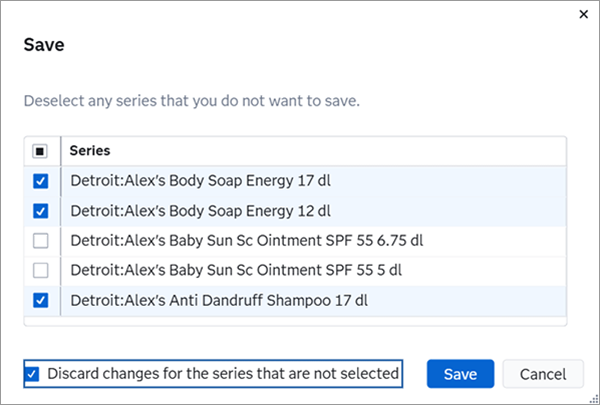
- Click Save at the bottom
of the window.
Each time series with saved changes is shown in the Series pane with the
 icon. Note: If other users are working in the same Interactive Modeling node, they receive the following message after the change is saved.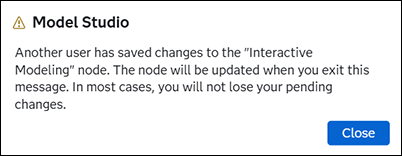
After dismissing this message, the other users see the time series that were updated with the
icon.If you deselect the champion status from a model, the initial predecessor becomes champion again, but this change must be saved.
- To deselect a model that you have selected as
champion, select the row with the champion model and click . The champion model for the selected time series reverts to the champion selected by the predecessor node.
This icon acts as a toggle, turning the champion selection on and off. Each change with the champion icon requires the change to be saved.
Series Update Status
Some project updates can cause failures in models that are selected as champion in the Interactive Modeling node. If these failures occur, they are not noticed until Interactive Modeling is opened after another run of the pipeline. If there are failures, the Series Update Status window is shown when you open Interactive Modeling. This window lists all of the time series that have champion models that were saved but could not be applied after the project update.
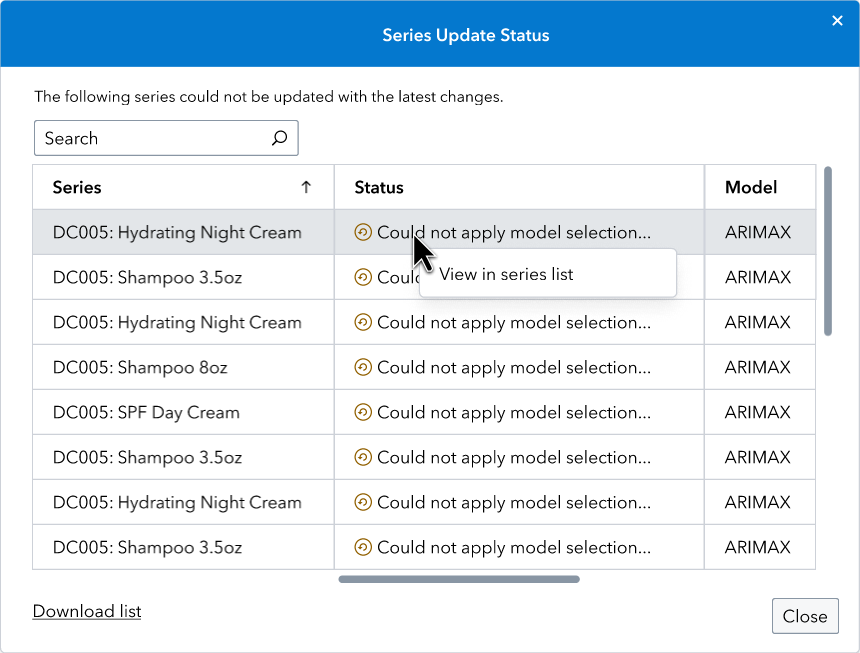
If there are many time series affected by the update, you can click Download list to download the complete list of time series to your local drive.
To address a failure, right-click the time series and select View in series list. The window closes and the selected time
series is highlighted in the Series pane. Time series in with failures
are indicated with the  icon. You can also retrieve the Series Update Status
window by clicking
icon. You can also retrieve the Series Update Status
window by clicking  .
.
Here are some options to address the failed models.
- For each failed model, take one of the following
steps.
- Select a different model as champion.
- If it is a custom model, edit the model to correct the problem. Then reset the model as champion.
- Save the changes as described in Saving Your Changes in Interactive Modeling.
- Invalidate the Interactive Modeling node, as described in Invalidating a Single Node in a Pipeline.
- Rerun the Interactive Modeling node.
After completing these steps, open the Interactive Modeling node again to verify that all of the failures have been fixed.
How Changes to the Hierarchy Affect Interactive Modeling
Changes to the hierarchy can affect the assignment of models in each time series in Interactive Modeling. Such changes include changing the hierarchy order, changing BY variable names, or changing the length of BY variables. You can expect the following changes in Interactive Modeling when the node is run again.
- Adding or removing BY variables results in
the removal of custom models the next time the Interactive Modeling node is
run.
Changing the order of the project hierarchy can also remove custom models, but those models can be restored by changing the hierarchy back to its original order.
- Model specifications that are assigned to time series that no longer exist are deleted, with the exception of Hierarchical Modeling. In Hierarchical Modeling, the models are mapped to the series at a given level. If a custom model is added to a given level in the hierarchy, it persists even after BY variables are added or deleted unless that level no longer exists.
- Model specifications assigned to the BY variables with trailing spaces in the name are updated.
- Custom models that are no longer assigned to a time series are removed unless the hierarchy is simply reordered. After the hierarchy is reordered, custom models are still re-mapped to the lowest level of data in the hierarchy.
- Any changes to BY variables can result in failures to reapply custom changes that have been saved previously for one or more time series. Some examples of custom changes are setting of champion models or setting of forecasts in the horizon to zero or missing. Such failures are reported in the Series Update Status window with appropriate messages.