Filters
The Filters pane provides a list of attributes that you can use to filtera set of specified criteria that are applied to data in order to identify the subset of data for a subsequent operation, such as continued processing. the display of time seriesan aggregation of transactional data into specified time intervals and sorted according to unique combinations of the default attributes (BY variables). The attributes listed include project variables that have been assigned as attributes, and attributes derived from characteristics in the time series and forecasta numerical prediction of a future value for a specified time period for each unique combination of BY variable values values of the project. If no attributes are assigned for the project, this pane is blank.
The Filters pane is available in four locations:
- On the left pane of the Time Series Viewer. This view is accessed from the Pipelines tab. After the Data node has been run, right-click the node and select Time series viewer. Forecast attributes derived from modeling nodes are not available on the Time Series Viewer.
- On the left pane of the Forecast Viewer. This view is accessed from the Pipelines tab. After the modeling node has been run, right-click the node and select Forecast viewer.
- On the left pane of Interactive Modeling. This view is
accessed from the Pipelines tab. After Interactive Modeling has been
run, right-click the node and select Open.
If Interactive Modeling has Hierarchical Modeling turned on, the Filters pane is empty and can be collapsed.
- On the left pane of the Overrides tab. For more information, see Overrides.
|
Use the Attributes list to browse the attributes of your data set and create filters based on specific values of those attributes. Filters enable you to work with a subset of the data set. The plot and data on the page are updated as you make your attribute selections. To make it easier to work with a large list of attributes, the attributes are grouped in the Filters pane by the attribute types. See Attributes for a description of the attribute types. For attributes with a large number of discrete values, only five values are shown in the list. Click More to access the full list of values. Use the search field to filter the list of values. Each term that you enter in the search filter adds that string to the query. For example, if you enter Note: Sometimes special characters in a search string result in incorrect results in the Filters pane. For best results, consider putting double quotation marks around the search terms. The following characters can provide unexpected results if you do not enclose the search string in double quotes. |
|
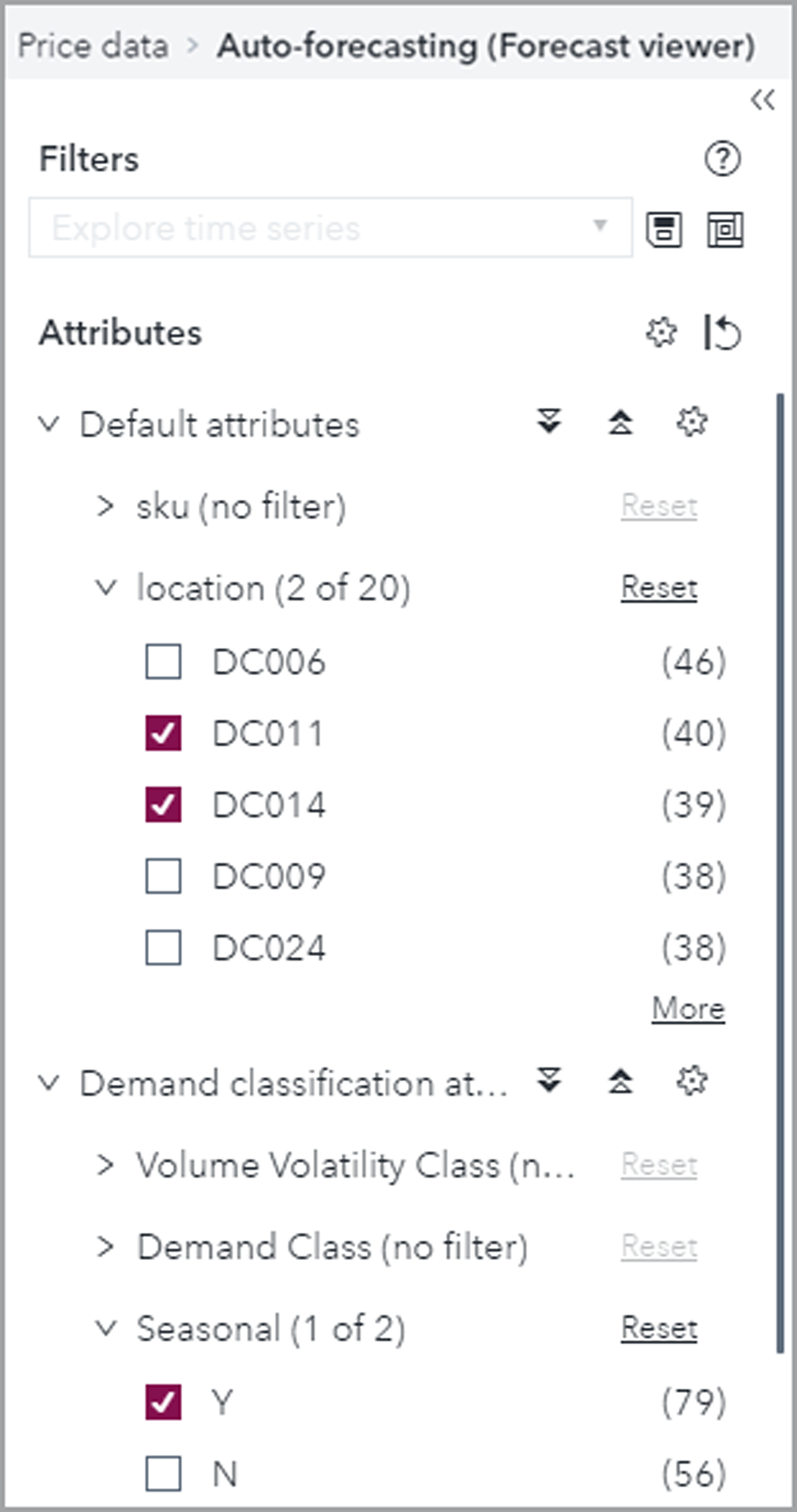
When the Filters pane is
initially rendered, the attributes setup by your project are displayed and the derived
attributes
are hidden by default. Select the  icon next to the Attributes title to add any of the
derived attribute types to the list.
icon next to the Attributes title to add any of the
derived attribute types to the list.
See Creating Filters for more information about creating filters.
Use the following to work with filters.
- Filters
-
Use this drop-down list to select the name of a filter that you have already saved

-
Saves your selections from the Attributes list as a new filter for subsequent use. You are prompted to provide a unique name for the filter.

-
Opens Manage Filters. Use Manage Filters to delete, rename, or change the properties of filters that have been saved.