Working with Override Conflicts
- What Is an Override Conflict?
- Resolving Override Conflicts Automatically
- Resolving Override Conflicts Manually
What Is an Override Conflict?
Override conflicts are detected when you submit pending overrides or resubmit applied overrides. When you submit an override, SAS Visual Forecasting disaggregates the override value to lower level time seriesan aggregation of transactional data into specified time intervals and sorted according to unique combinations of the default attributes (BY variables). If a conflict is found, you are notified and the conflict must be resolved immediately.
Conflicts can be caused by the following conditions:
- An override falls outside of the Maximum percentage change of final forecast setting in the Project Settings.
- Any combination of constraints caused by locked statistical or aggregate values, maximum allowed changes, or overrides from filtersa set of specified criteria that are applied to data in order to identify the subset of data for a subsequent operation, such as continued processing. with overlapping filter specifications.
When the conflict is found, you are prompted to make a choice between Resolve automatically (letting SAS Visual Forecasting resolve the conflict) or Resolve manually (resolving it yourself). You cannot create any new overrides until conflicts are resolved.
Resolving Override Conflicts Automatically
If you do not choose to resolve conflicts automatically when you are prompted, you can still choose to take this option using the Overrides Management tab.
Click  over the right corner of the table and select Automatically
resolve all conflicts. SAS Visual Forecasting resolves the conflicts and updates the table.
over the right corner of the table and select Automatically
resolve all conflicts. SAS Visual Forecasting resolves the conflicts and updates the table.
Resolving Override Conflicts Manually
If you choose to resolve override conflicts yourself, a Conflict window is displayed. You are provided with several resolution options for resolving the conflict. The following figure shows a conflict with two filters that are already applied with an aggregate final forecasta numerical prediction of a future value for a specified time period for each unique combination of BY variable values lock.
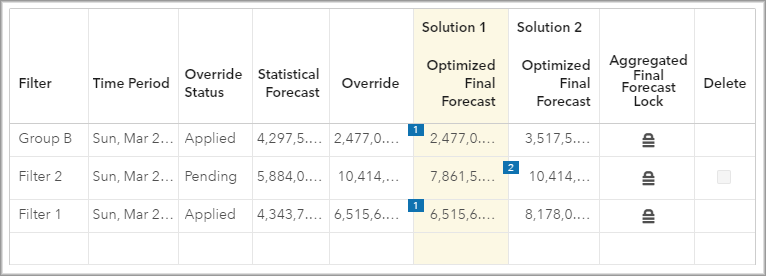
- Solution 1
-
This option gives priority to locked overrides that have already been applied. Choosing this solution replaces your pending override value with the best alternative that can be applied.
- Solution 2
-
This option is available when you try to apply a locked override that cannot be honored because of a previously locked value. This solution gives priority to preserving the pending locked override and replaces one or more previously applied locked overrides.
- Update lock(s) and/or delete overrides(s)
-
Choose this option to either update a lock or delete an override altogether.
In some cases where the Optimized Final Forecast value is the same for both solutions, only Solution 1 is offered.
After you make your selection and resolve the conflict, go to the Override Management tab and resubmit the overrides.
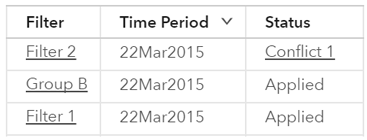
If you cancel from the Conflict window without resolving the conflict, you can resolve the conflict later using the Override Management tab. The override with the conflict is listed with a conflict link in the Status column. Each conflict in the table is labeled as Conflict plus a number. Click the conflict link in the Status column to open the window and resolve the conflict.