Disabled Filters
- Working with Filters in the Time Series Viewer
- Changing Attribute Settings on the Data Tab
- Incompatible Settings in a Modeling Node
- Removing Periods Excluded from Modeling
Sometimes a filtera set of specified criteria that are applied to data in order to identify the subset of data for a subsequent operation, such as continued processing. that has been saved cannot be selected from the drop-down list of the Filters pane. In this case, you also cannot apply the filter or view its properties from the Manage Filters window. This can be caused by any of the following circumstances.
Working with Filters in the Time Series Viewer
The Time Series Viewer can access attributes created from the project's input data, the descriptive statistics, and the demand classification. If a filter is created using forecasta numerical prediction of a future value for a specified time period for each unique combination of BY variable values attributes, you cannot invoke that filter from the Time Series Viewer. Go to the Forecast Viewer to work with that filter.
Changing Attribute Settings on the Data Tab
There are two settings on the Data tab for attributes that originated from the project's input data.
- Activate attribute
-
When this setting is turned on, the attribute is available in the Filters pane and can be used for creating filters. If you turn this setting off after saving the filter, the filter is no longer valid. You can turn the setting back on if you need to continue to use the filter. If you no longer need the filter, you can delete it using Manage Filters (
 ).
).After running a pipeline and opening the Overrides tab, the Activate attribute setting is locked if it is set to Yes. If any attributes have this set to No, they can still be changed after opening the Overrides tab.
- Display as range
-
This setting determines whether attribute values are selected for filters using a continuous value (range) or discrete value (check boxes). Changing Display as range invalidates any filters created with that attribute. You can turn the setting back to the previous value if you need to continue to use the filter. If you no longer need the filter, you can delete it using Manage Filters (
). After running a pipeline and opening the Overrides tab,
the Display as range setting is locked.
Incompatible Settings in a Modeling Node
Some attribute values are derived from settings from a modeling node.
For example, many modeling nodes enable you to select which models should be considered
for the time seriesan aggregation of transactional data into specified time intervals and sorted according
to unique combinations of the default attributes (BY variables) in the project. If you run the Auto-forecasting node with ARIMA, ESM, and UCM all
selected for model generation, the result generates the number of time series that
are selected to use these models for forecasting. In the Forecast Viewer for Auto-forecasting, you can create filters using the Model
family attribute.
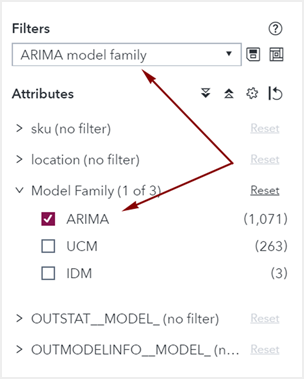
The same pipeline could include a modeling node that
does not support the Model family attribute, such as Panel Series Neural Network. In this case, the filter is still valid for certain modeling nodes, but is disabled in the Forecast Viewer for Panel Series
Neural Network.
You can create overrides using model-specific filters. However, if you change the champion pipeline to one that does not support that filter,
then submitted overrides using that filter are moved to Archived status.
Removing Periods Excluded from Modeling
In Project Settings, you can designate an out-of-sample regionthe number of time periods before the end of the data that are removed when fitting models. After model selection, forecasts are generated in the out-of-sample region and then compared to the actual data to determine accuracy. for the project by setting a positive integer for Number of periods to exclude from modeling. Then you can create filters based on out-of-sample forecast attributes. However, once you change the setting back to 0, those filters become disabled.
If you have any overrides using disabled filters for the out-of-sample region, they are no longer active and become archived. If you designate an out-of-sample region again, then you need to refresh the data when you return to the Overrides tab. Your overrides need to be resubmitted. After you resubmit, the archived overrides are returned to active state.