Override Status
After you have created and submitted new values for overrides, the cells change depending on the status of the override. The following are status indicators shown on table cells to describe the status of an override:
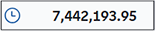
- Pending override:
-
After you create an override, the cell in the Override row displays the override value and the
 indicator. When you are ready for one or more pending overrides to be calculated
in the final forecasta numerical prediction of a future value for a specified time period for each unique
combination of BY variable values, right-click the cell and select Submit all.
indicator. When you are ready for one or more pending overrides to be calculated
in the final forecasta numerical prediction of a future value for a specified time period for each unique
combination of BY variable values, right-click the cell and select Submit all.If you set an aggregate final forecast lock on this time period, the cell is disabled. You cannot enter an override value directly in the cell or delete the pending override, but you can still open the Override Calculator and make changes while the status is in pending.
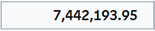
- Applied override:
-
After you submit an override, the override value is disaggregated to the lower level time seriesan aggregation of transactional data into specified time intervals and sorted according to unique combinations of the default attributes (BY variables) and, if no conflicts are found, the status becomes applied. The applied value is shown on the Final Forecast row for that time period.
If the Aggregate final forecast lock is turned on for an applied override, the cell in the Override row is disabled.
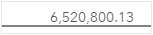
- Locked statistical forecast:
-
If the Statistical forecast lock is turned on for a time series, the value is shown as locked in the Forecast row. The
icon remains in the Overrides cell until the statistical forecast lock is applied. - Applied locked statistical forecast:

-
After a locked statistical forecast is applied, the status is indicated in the Final forecast row. The value shown matches the value in the Statistical Forecast row and the Override cell is disabled.