Sharing Projects
When you create a project, you become the project owner and the project is kept in private mode so that only you can view or edit it. You can share the project with other users and groups.
When you share a project, you must specify how other users can access the project.
- If you give users only
Read access to a project, they can view any part of the project but
cannot make any changes.
Users with Read access to the project can also share the project with Read access to other users.
When you view the project list as a table, you can click
 in the Permissions column to see who has
Read access.
in the Permissions column to see who has
Read access.To view your project list as a table, click
 in the upper left corner of the Projects page.
 - If you give users Read
and Edit access to a project, they can make changes to the project.
When a user edits the project, the project is not locked, and other users with Edit access can make changes at the same time. Simultaneous changes can cause conflicts. When a project is shared with multiple users with Edit access, users should click
 in the project banner to determine whether anyone
else is editing the project at the same time. This action displays
each user name along with the level of access and the name of the
tab that is open.
in the project banner to determine whether anyone
else is editing the project at the same time. This action displays
each user name along with the level of access and the name of the
tab that is open.If multiple users are working in the project, they should click
 often in the project banner to make sure they have
the latest changes.
often in the project banner to make sure they have
the latest changes.Users with Edit access to the project can share the project with other users and give them Edit and Read permissions. Users with Edit access can also delete the project.
To share a project that you own:
- On the Projects page,
click
 on the tile for the project and select Share.
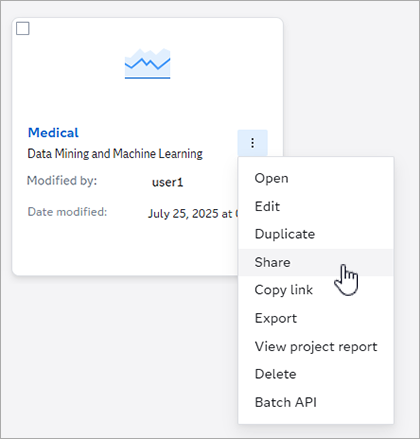
The Share window is displayed.
Note: If you are viewing the project list as a table, select the project and click on the upper right of the page and select Share.
You can select multiple projects to share.
- Enter the name of one
or more users or groups.
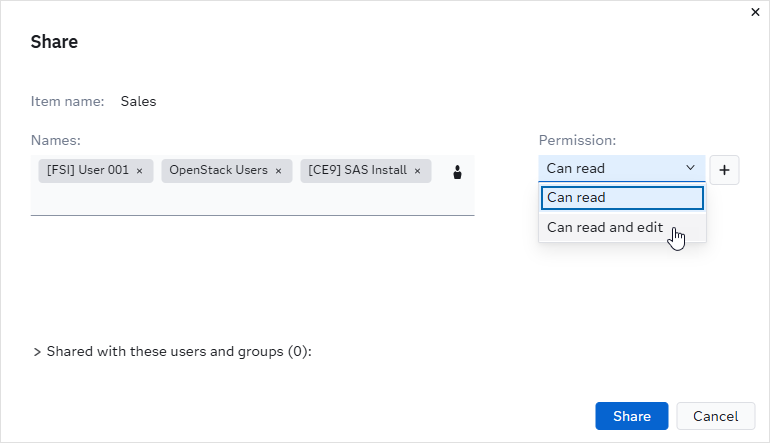
- For each list of users,
select the access level on the right.
- Can read — the users can only view the project and cannot make any changes
- Can read and edit — the users can view and make changes to the project
You can add a separate group of users by clicking
 .
. - When you are finished, click Share to close the window and return to the projects page.
The project is now shared.
You can open the Share window again if you
need to change or remove access for any users. To change the level
of access for any user, click  .
.
To change users' access level, follow these steps.
- Click on the tile for the project and select
Share.
- Click . This opens the Edit Sharing
window.
- For each user, you can change their access to Read, Read and edit, or, to remove their access, select Unshare.
For users that have access to your project, you can send them links that take them directly to these specific locations in the project.
- Project tiles —
From a project tile on the Projects page,
click and select Copy link.
- Project tabs —
From any tab, click
 and select Copy link.
 - Pipelines —
From a pipeline in the Pipelines tab, click and select Copy pipeline link.
- Nodes —
From any node in a pipeline, click and select Copy node link.
For each action, the Copy Link window is opened. Click Copy Link. The link is copied to your clipboard and the window is dismissed. You can paste the link in any communications that you send to the other users. It will take them directly to the tab, pipeline, or node that you copied the link from.